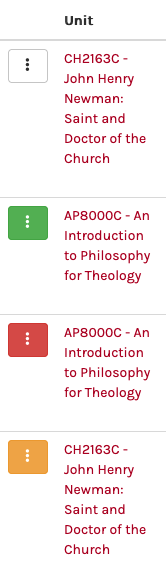
College auditing of scheduled units
This applies to people with Academic Dean roles.
Recording audit status in UMS
- Head to the UMS https://ums.divinity.edu.au/
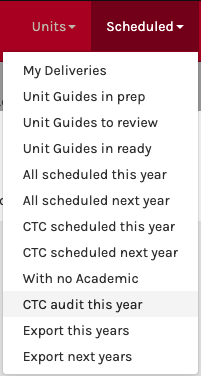
- In the main menu, under Scheduled, click on “XX audit this year” where XX is your college’s abbreviation
- A list of deliveries will appear. This list includes the Scheduled Unit status (in_preparation, for AD, running) – for those with students enrolled, should be in the status of running.
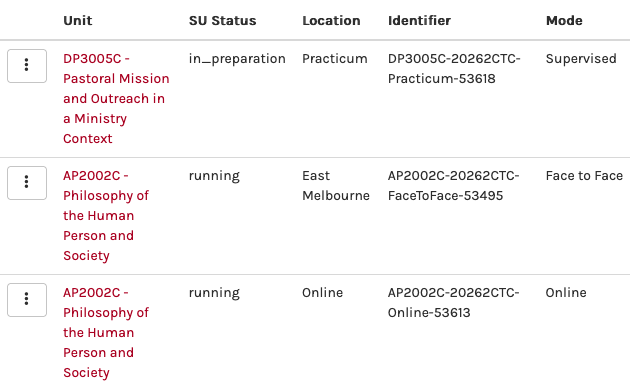
- At the left-hand end of each item there is a button menu containing links

- The one labelled ARK goes to the child unit in ARK.
- The Audit, OK link records that the audit has been completed for that delivery and information is accurate
- Once clicked the UMS is updated to reflect this has been audited (green)
- You can click the same link again to move it to Audited, failed status (red)
- You can click the same link again to move it to a Audited, follow-up status (orange)
- Clicking a further time reverts it back to not yet Audited state (white)